Manage Product Connections
When completing and verifying orders in Dispatch Pro, a user may receive a notification stating "This order has completion(s) that have unconnected products."
In the products dashboard, products imported or added into Dispatch Pro which require a connection to a Raven AgSync source product are displayed in the products dashboard with a caution  icon.
icon.
Note: Most products imported into Dispatch Pro will be mapped and connected automatically while some products may require a manual connection. Users will always have the ability to edit connections or manually add or remove a connection.
Add a Connection
To connect an imported or added product to a Raven AgSync product:
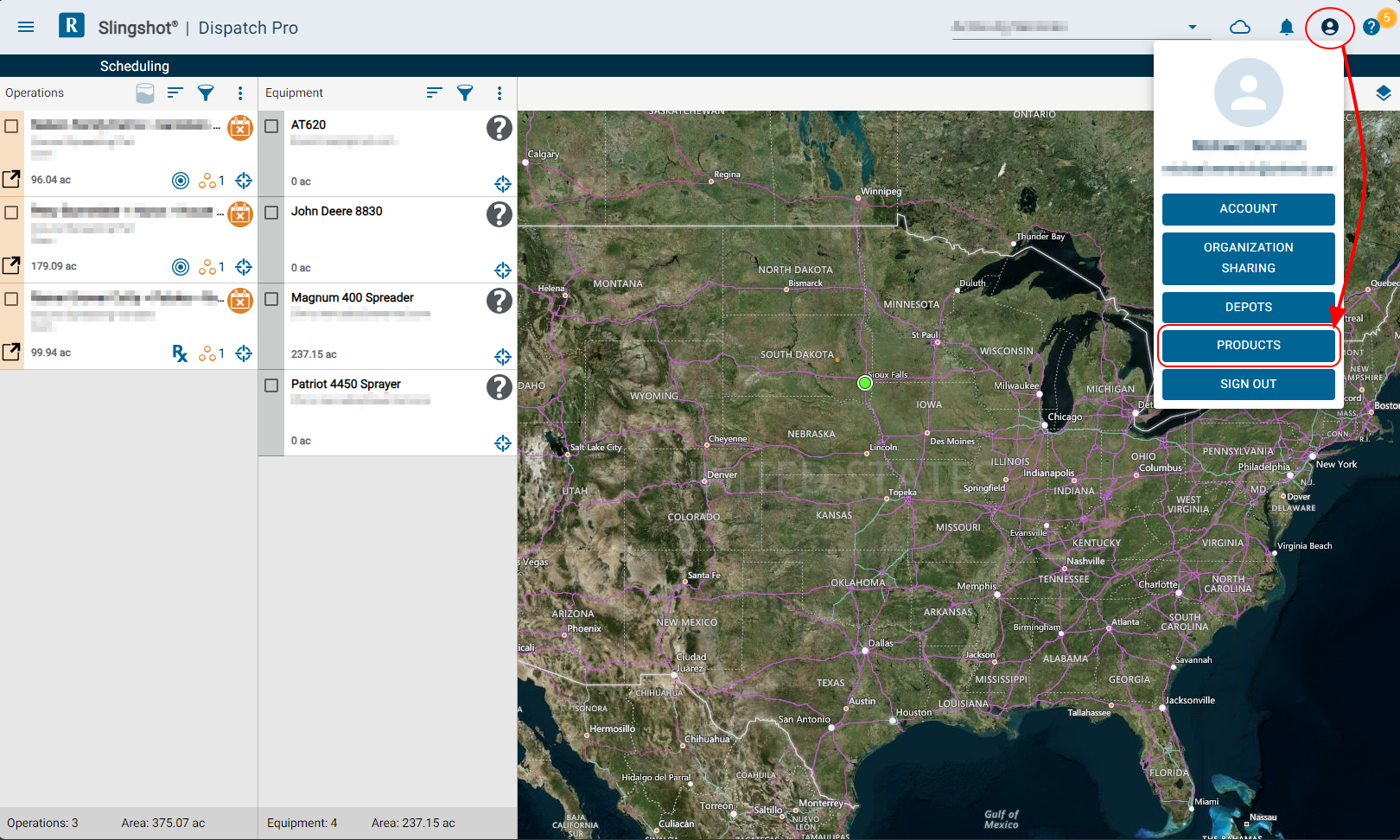
- From the Dispatch Pro main page, select the Account icon in the upper, right corner and select the Products button.
- From the products page, select the Link icon in the upper, right corner.
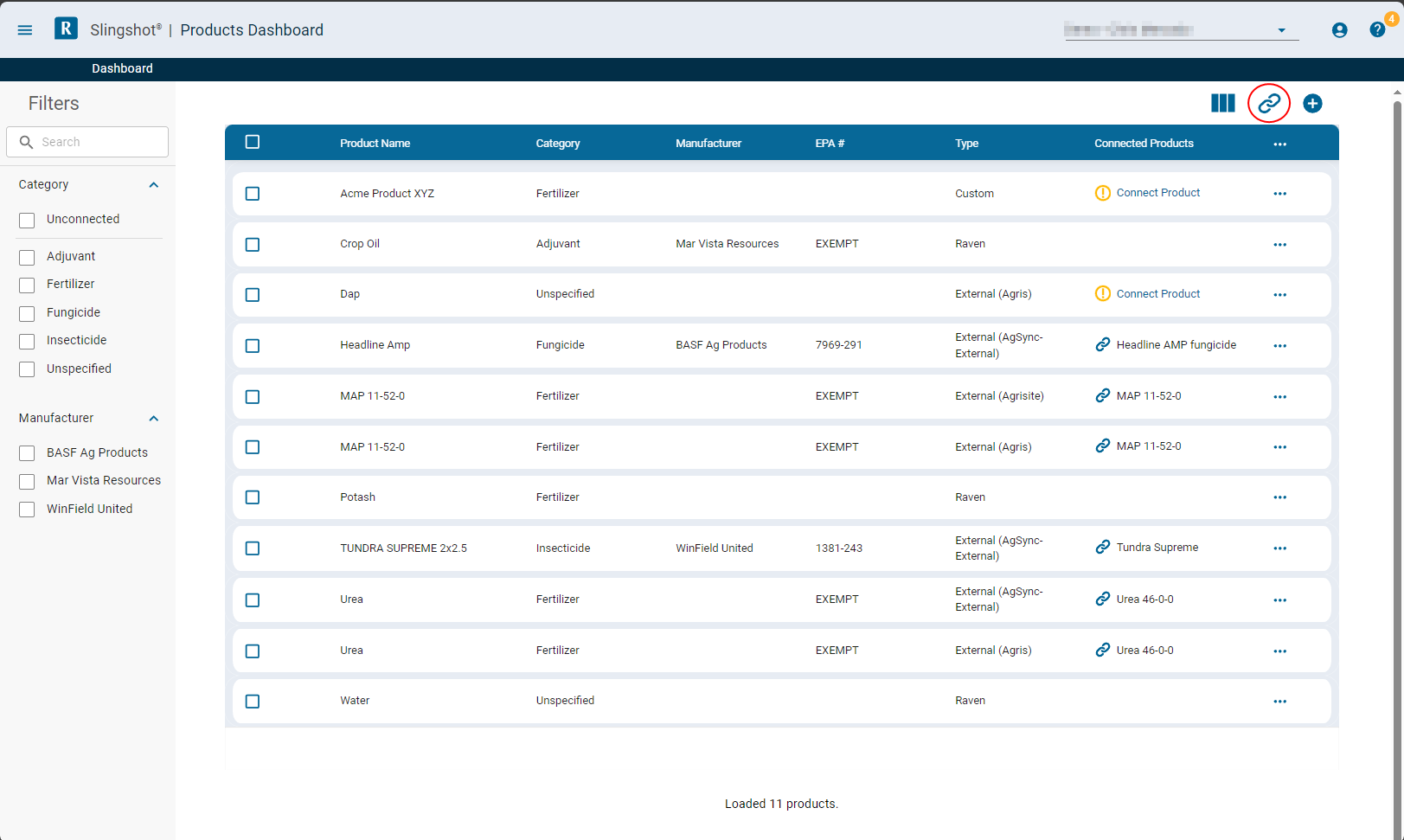
The Connect Products page displays.
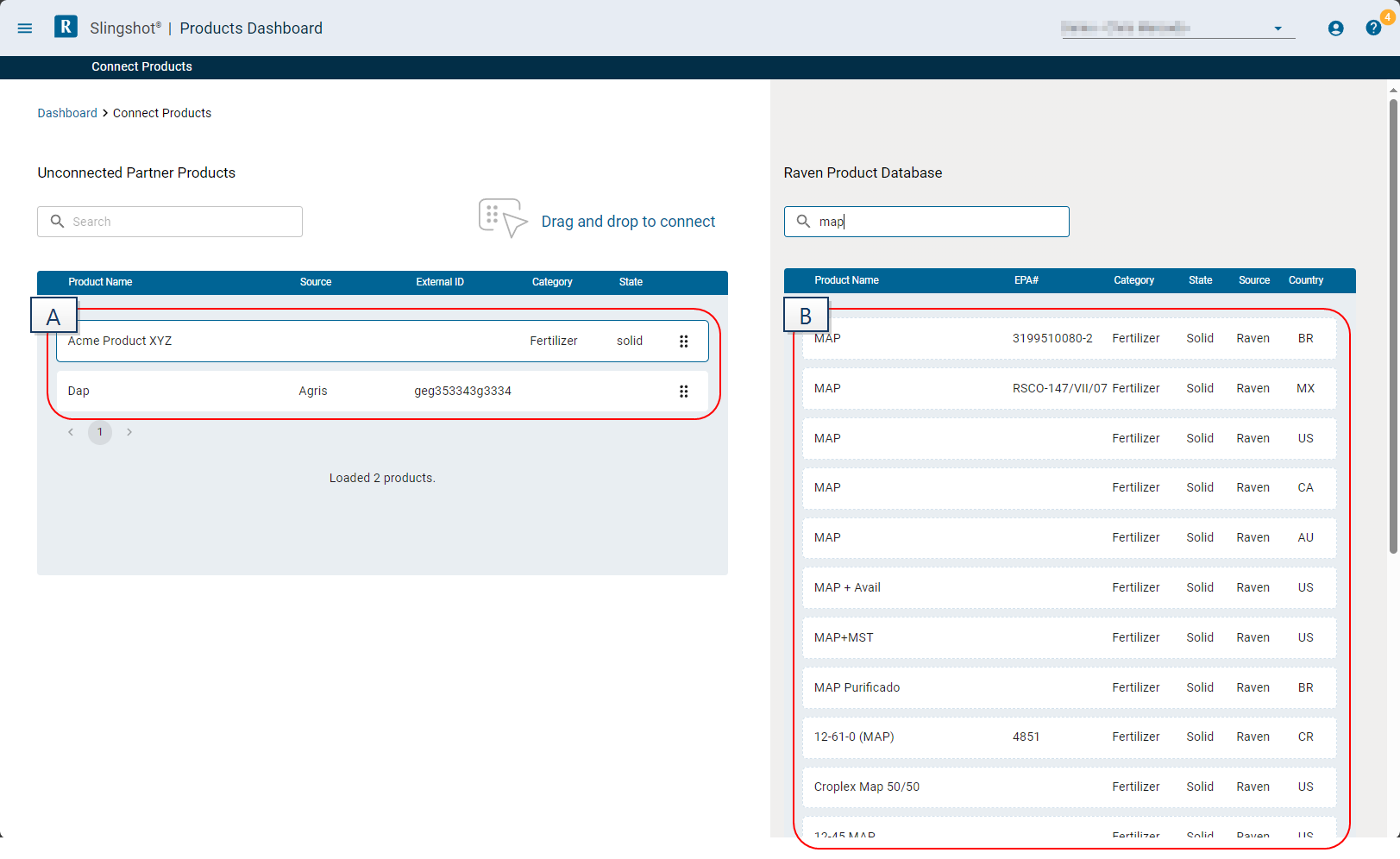
- A - Unconnected Partner Products
- B - Raven Products
- Use the search fields for either the partner or Raven products as necessary to find the desired products to connect.
- Click and drag the partner product from the left column onto the Raven AgSync product. The products dashboard will display a "Custom Connection Success" prompt once the connection is made.
- Return to the products dashboard.
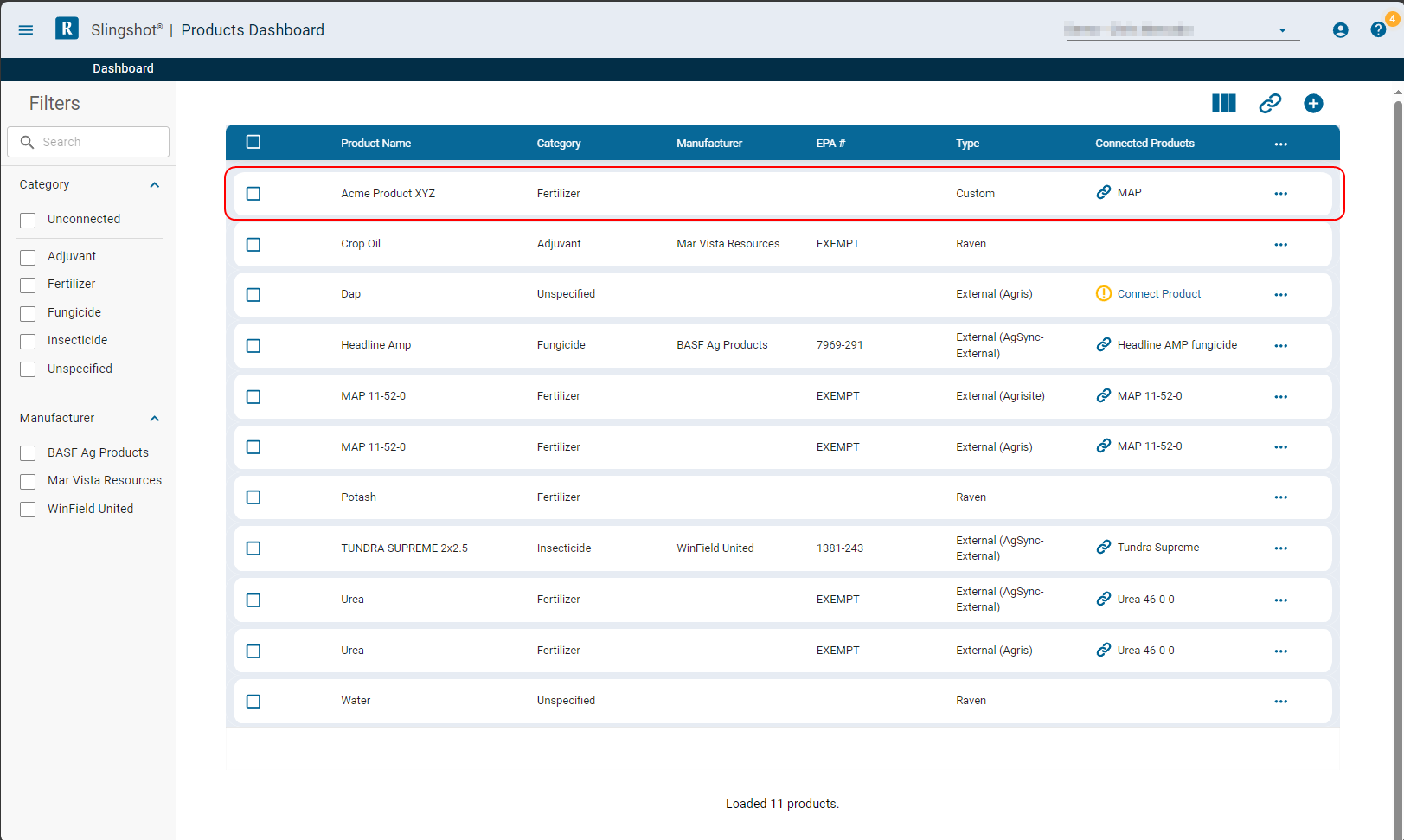
The Type column still displays the original source information. The Connected Products column now displays as connected and the Raven AgSync product to which the item is mapped.
Remove a Connection
- From the Dispatch Pro main page, select the Account icon in the upper, right corner and select the Products button.
- Select the Item Menu
 at the right end of the product information item and select Remove Connection from the menu options.
The products dashboard will display a "Product Connection Removed" once the update is complete and the Connect Product icon will be displayed in the products dashboard.
Last Revised: Sep 2024