Manage Menu Overview
The Manage menu provides several tools for managing users, devices, files, and to provide remote support access.
Devices and Systems
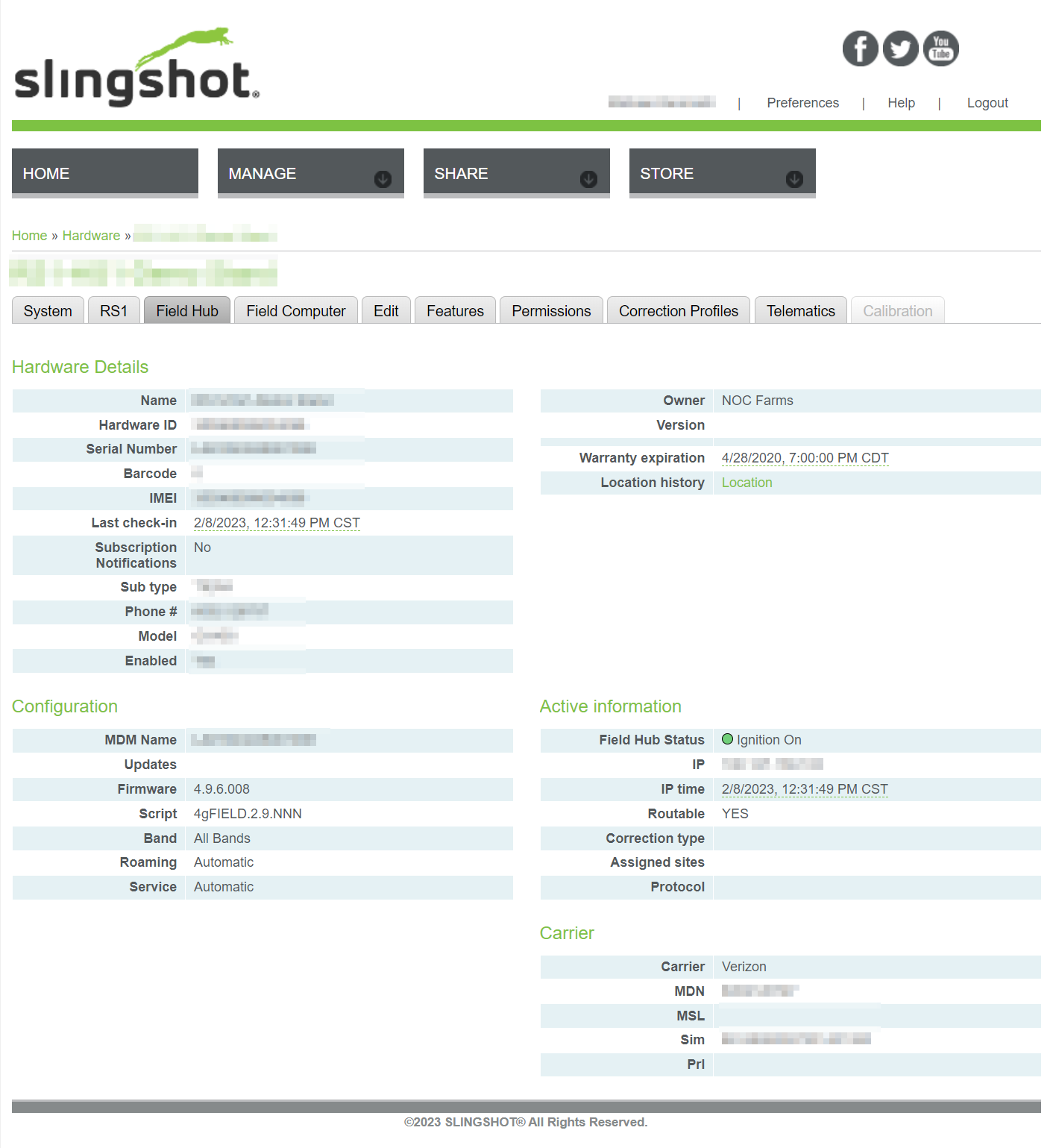
Select the Hardware, Field Hub , or Systems pages to check status and review details for various Slingshot® enabled devices associated with the Slingshot® account.f
Select the links to open a page with details for the various devices connected to the selected system.
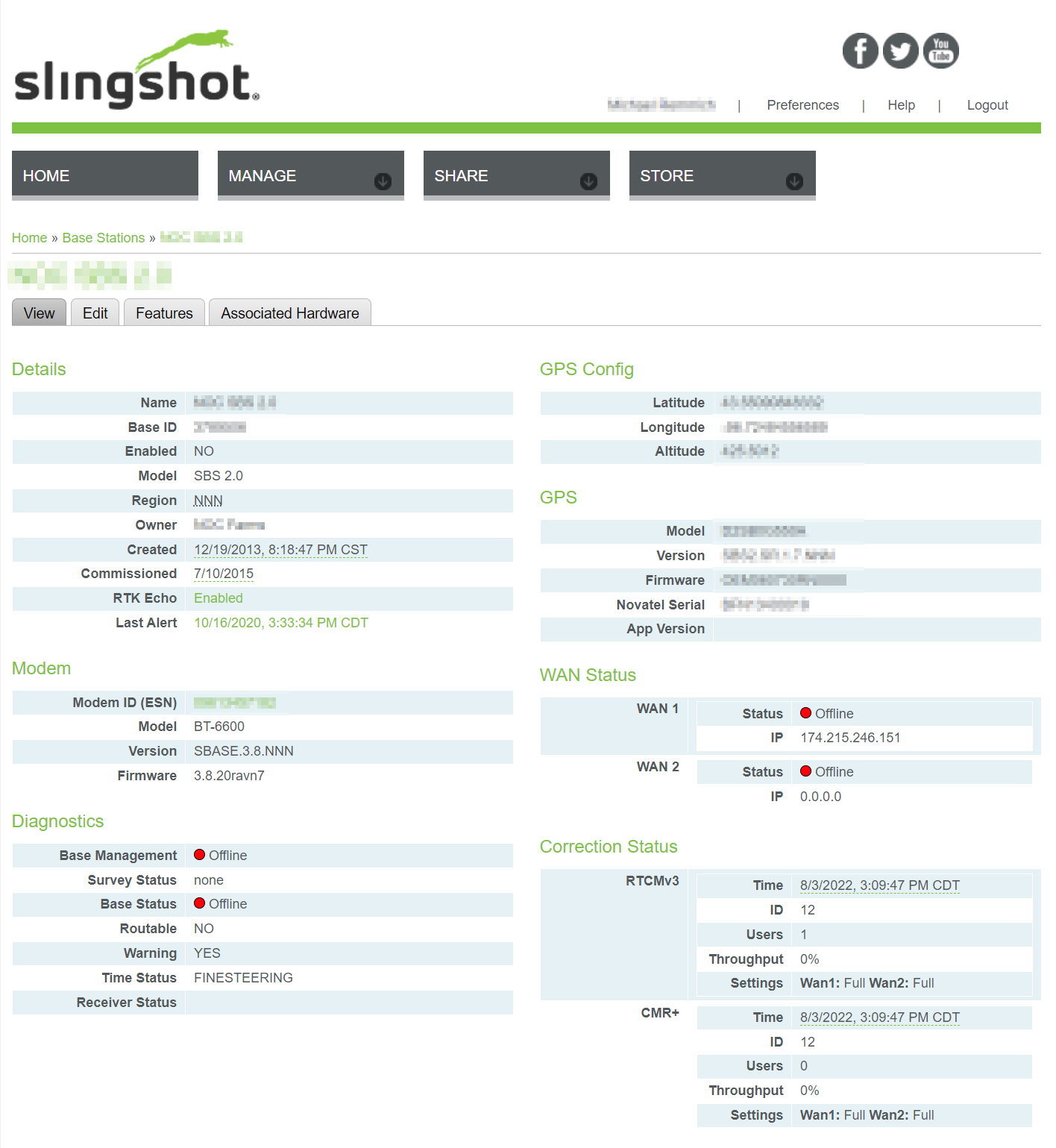
Base Stations
The Base Station page may provide information for any base stations associated with the user account.
File and Download Managers
Use the Slingshot® file manager to upload files from your local computer, send and receive files from the field.
The download manager provides easy reference for field reports and information packages ready to move from Slingshot® back to your local home or office PC.
Remote Support
Use Get live, in-cab support with a Raven field computer connected to an active Slingshot® enabled device.
Anyone with a Slingshot® username can log into a field computer using the remote support code generated by the field computer.
Note: Remote support must be enabled by the operator on the field computer to allow a remote support session. Additional information about the remote support feature can be found on the technical support knowledge base.
Street Maps
Create custom street maps for use on Raven field computers. Select a location and size for the map to download to Raven CRX and ROS platform devices.
Note: Refer to the field computer user assistance page for additional assistance with more information on street maps on the CRX platform. Review the field computer user assistance site for assistance
| Signal Range | Functionality |
|---|---|
| 0 to -100 | The Slingshot® Field Hub should function at optimum performance. |
| -100 to -110 | |
| -110 to -125 | The Slingshot® Field Hub will struggle to keep consistent signal and files may or may not transfer. RTK Real-time Kinematic corrections can be affected. Real-time Kinematic corrections can be affected. |
Last Revised: Sep 2024