Import a File
Files such as maps, guidance lines, and feature unlocks may be imported with CRX+.
Note: Products may be imported via the file manager, but require specific formatting of the file. Refer to Transfer Products via .CSV File for more information on importing a product.
After downloading the desired file to a USB and inserting the USB into the CRX+:
-
Select Settings
 on the bottom left of the Home screen. The Settings Menu will open.
 - Select File Manager
 on the Settings menu. The File Management window will open.
 - Select USB from the left-most drop-down.
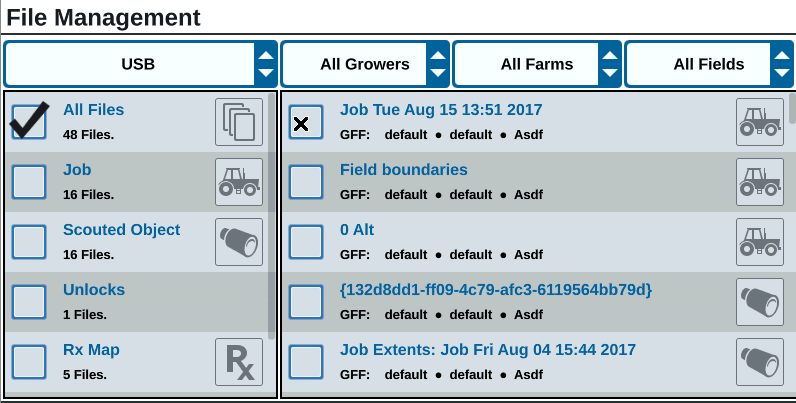
Note: The USB device must have FAT32 file system.
- All files located on the USB will display. Navigate to and select the desired file type to filter which files are shown.
Note: For this example, it is a feature unlock, but maps and guidance lines are imported by the same process. See Feature Unlocks for more information.
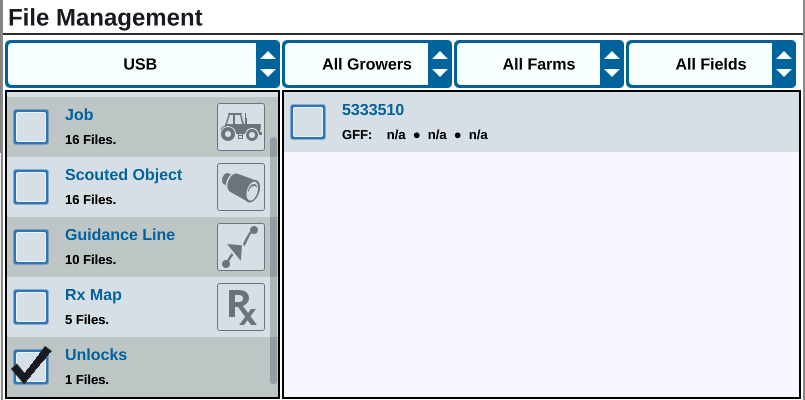
- Select the desired file from the cell to the right.
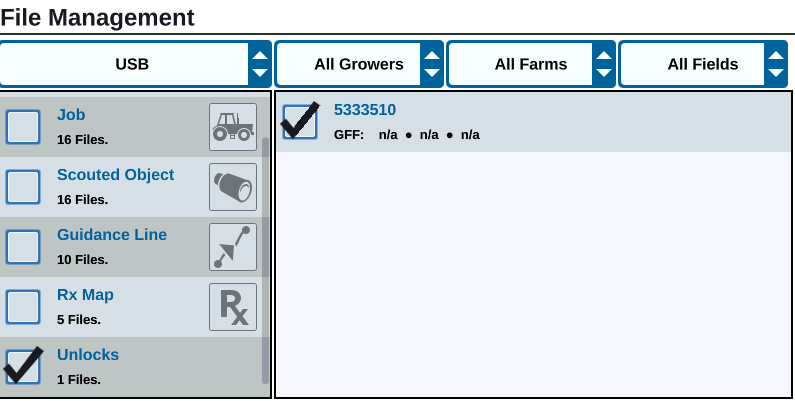
- Select Copy
 near the bottom of the screen and select Accept
 in the pop-up window. The files will copy to the CRX+.
 - To verify unlocks have transferred successfully, navigate to the Features
 tab in the Software Update page. The downloaded unlocks should now display with an open lock icon beside the feature.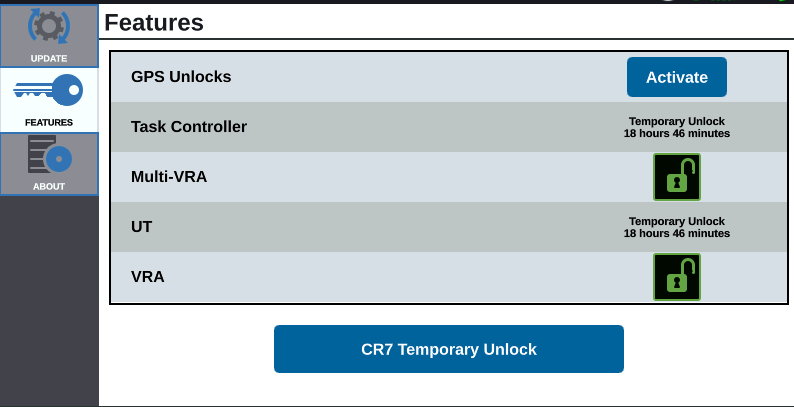
- Select Eject USB to properly save the information on the USB stick so it can be removed.
- Select Accept
 to save the displayed settings and return to the Settings menu.
Last Revised: Jul 2024